
← Back To Blog
Download Upwork Time Tracker: Get Started in 2026
You've accepted an hourly contract, the client wants work to start today, and the first real task isn't the task itself. It's getting the Upwork tracker installed, signed in, and running correctly before you bill a minute.
That moment matters more than most new freelancers and junior team members think. If the app isn't set up right, you can do real work and still create avoidable payment friction later. In an agency setting, one bad tracking habit can spread fast across the team.
The practical way to think about it is simple. The Upwork Desktop App is part timer, part audit trail, and part payment safeguard. If you're trying to download upwork time tracker and get it working without surprises, the goal isn't just installation. The goal is clean, protected, reviewable hourly time from day one.
Why the Upwork Time Tracker Is Essential for Hourly Work
A new team member usually asks the same question after landing their first hourly contract. “Can't I just track time manually if the app gives me trouble?”
Sometimes you can add manual time. That doesn't make it the right default. On Upwork, the desktop app is tied directly to Hourly Payment Protection, which is why experienced freelancers treat it as operating equipment, not optional software. Upwork reported over 118,000 active hourly jobs by 2023, and a meaningful share of its $3.6 billion Gross Services Volume in 2022 was tied to this hourly workflow, as noted in Upwork's discussion of hourly work and the desktop app.
What the tracker actually does
The tracker records work in 10-minute segments. It captures 6 screenshots per hour randomly and logs activity signals such as keystrokes, mouse clicks, and scrolls, without recording content, apps used, or webcam data. That's what creates the Work Diary record clients can review if they have questions.
For a freelancer, that means less ambiguity. For an agency owner, it means there's a shared standard across the team.
Practical rule: If the contract is hourly, start from the assumption that tracked time is the safest time.
The app also changes behavior in a good way. People pause when they step away. They switch contracts correctly. They leave better memos. Those habits reduce confusion before it turns into a billing dispute.
Why agencies care so much about it
In a solo setup, the tracker protects your own hours. In an agency, it protects the whole billing process. You can't scale hourly delivery if every contractor tracks work differently, forgets to start the timer, or dumps vague manual notes in at the end of the week.
Three reasons this matters in practice:
- Payment security: Tracked time is the standard path for protected hourly billing.
- Client trust: A client can review screenshots, activity, and memos in one place.
- Operational discipline: Team members learn to work in clean, contract-specific blocks.
If someone on your team still doesn't understand how Upwork's contract system works, send them to this practical breakdown of how Upwork works. It helps them understand why the tracker sits at the center of hourly delivery instead of off to the side.
Checking System Requirements and Finding the App
Most install problems start before installation. People download the wrong file, try to run it on an unsupported device, or ignore permission prompts and assume the app is broken.
The clean approach is to check the machine first, then download only from Upwork's official download page.
What your system needs
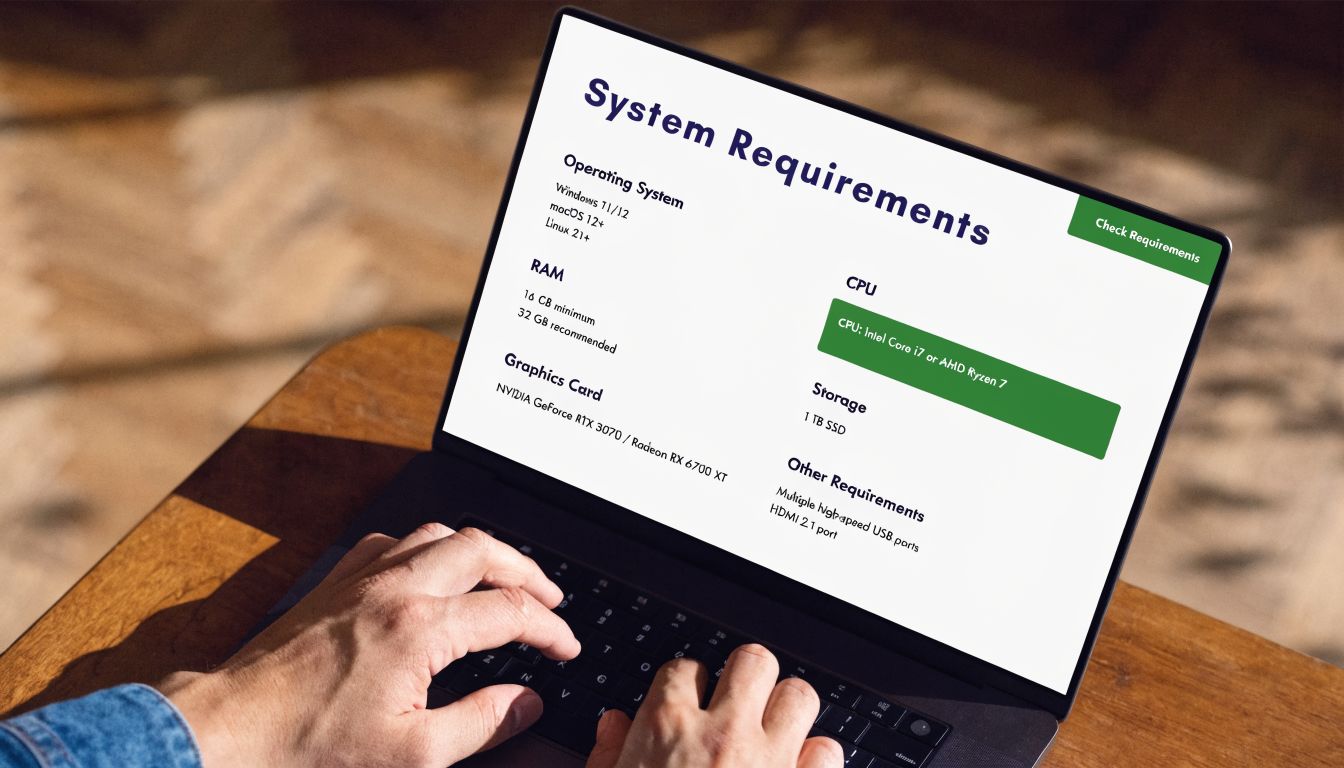
The installer is typically 100-150MB and the app needs a minimum of 2GB RAM, according to Upwork's desktop app download information. It supports Windows, macOS, and Linux, while Chromebook support remains limited.
That sounds simple, but there's a difference between “supported in theory” and “smooth in practice.” Windows and Mac are usually straightforward. Linux can work, but package and dependency issues are more common. Chromebook is where many people waste time trying to force a setup that won't behave reliably.
Use this checklist before you download:
- Operating system: Confirm you're on Windows, macOS, or a Linux setup you can manage.
- Memory: Make sure the machine has at least 2GB RAM.
- Permissions: Be ready to grant screen capture permissions, especially on macOS.
- Security software: If you use aggressive antivirus on Windows, expect possible installer friction.
- Device type: Don't assume a Chromebook will work just because it can run some Linux apps.
Where to download it
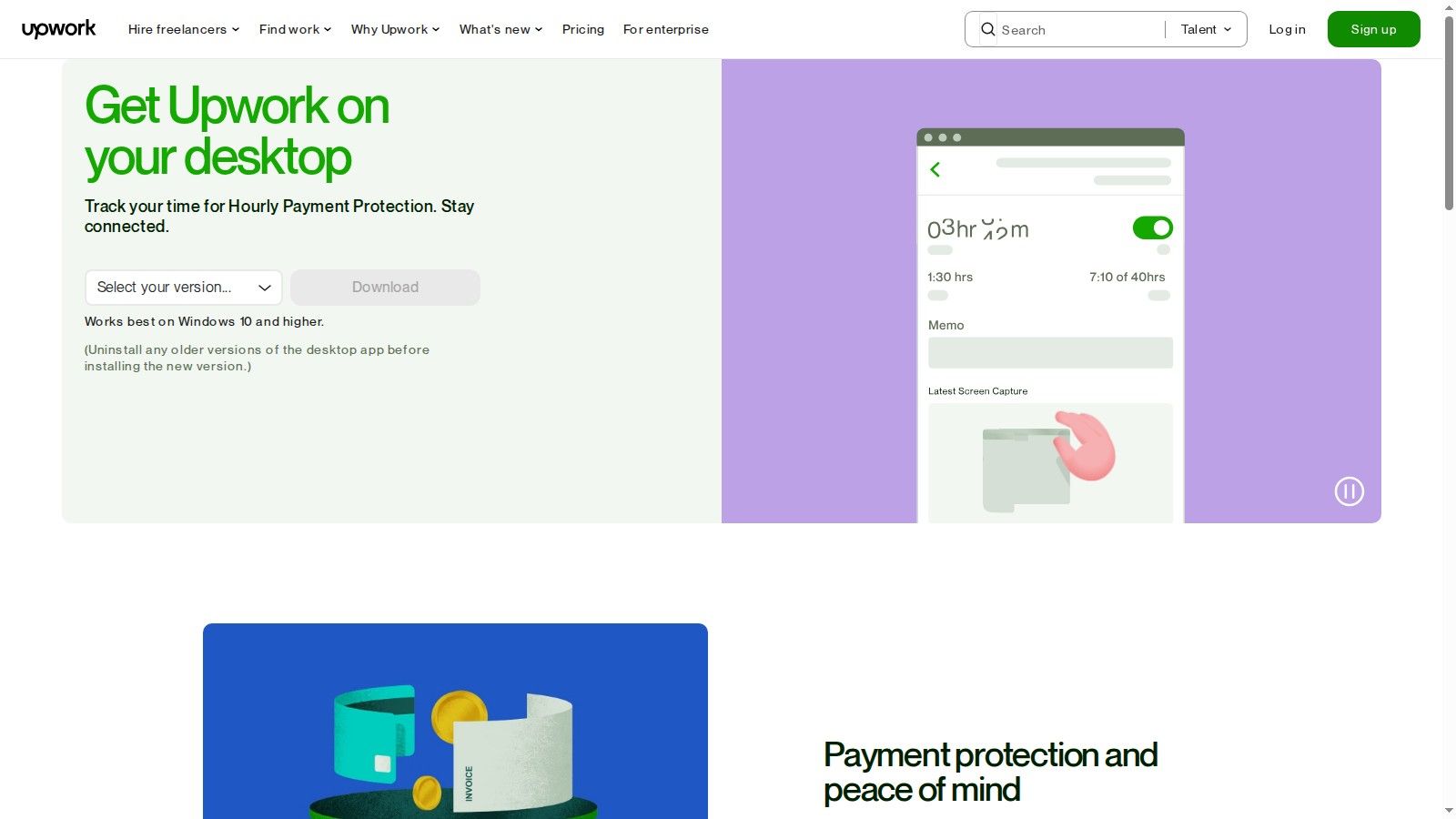
The safest path is from inside your Upwork account or from Upwork's direct desktop app download page. Inside Upwork, go to Find Work and then Desktop App. If you're helping a new hire remotely, send them the official app page rather than a search result.
Downloading from the official Upwork page matters because the install steps, supported systems, and current package versions change. Old tutorials go stale fast.
A small but useful agency habit is to keep an internal onboarding note with the current OS-specific file type each teammate needs. Windows gets the .exe, macOS gets the .dmg, and Linux uses the distro-appropriate package.
Step-by-Step Guide to Download and Install the Tracker
Installation usually takes a few minutes. The edge cases take longer, and they're the reason people think the app is harder than it is.
Upwork's own install flow reports a 95%+ first-time install success rate, but up to 30% of users encounter issues, often from OS-specific problems such as antivirus blocks on Windows or Gatekeeper restrictions on macOS, based on Upwork's app download details.
Install on Windows
Windows is the most common setup in agency teams, and it's usually the easiest.
- Download the .exe installer from Upwork's official desktop app page.
- Double-click the file.
- Approve the User Account Control prompt if Windows asks.
- Accept the license terms and complete installation.
- Launch the app and sign in through Upwork.
After login, Windows users should test one thing immediately: start the app, select a contract, and verify that tracking can begin without a crash. If it fails right at the start, security software is a common culprit.
Common Windows fixes:
- Antivirus interference: Whitelist the Upwork desktop executable if the installer or launcher gets blocked.
- Permissions issue: If the app won't start tracking cleanly, run it with administrator privileges.
- Old corporate device policies: On managed laptops, local admin restrictions can block installation or screen capture access.
Install on macOS
Mac installs are simple until Apple privacy permissions get in the way.
The normal path looks like this:
- Download the .dmg
- Open it
- Drag the app into Applications
- Launch it
- Sign in
- Grant the required permissions when macOS prompts you
What matters most on Mac is the permission flow. If screen recording access isn't granted, screenshots won't work properly, and that can break the point of using the tracker.
On macOS, don't ignore the permission pop-up and assume you can fix it later. A half-approved install creates confusing behavior.
If Gatekeeper blocks the app, right-click the app icon and choose Open. That often clears the first-run block.
Here's a walkthrough if you want to see a visual install flow before doing it yourself:
Install on Linux
Linux is where generic tutorials become unhelpful. Upwork provides Linux packages, but success depends more on your distro, package handling, and desktop environment than on the basic download itself.
The usual process is:
- Download the .deb or .rpm package that matches your distribution.
- Install it with your package manager or system installer.
- Resolve any dependency prompts before launch.
- Open the app and authenticate with your Upwork account.
- Test screen capture and contract selection before real work starts.
Linux users should expect more manual intervention than Windows or Mac users. The install itself may complete while the app still fails at runtime because of dependency mismatches or permission behavior.
A few practical rules help:
- Match the package to the distro: Don't improvise across package formats.
- Test screenshots early: If screenshot capture fails, don't assume tracking is safe.
- Avoid last-minute installs: Linux setups should be tested before the workday starts, not five minutes before a client meeting.
What to verify after install
Before you log your first billable hour, check these four things:
- You can sign in successfully
- Your active hourly contract appears
- The Start button works without errors
- The Work Diary reflects the tracking session
If those four checks pass, the app is ready for production use.
Running Your First Time Tracking Session
The first session is where people either develop a clean workflow or pick up habits that cause mess later.
Open the app, sign in, and look for your active hourly contracts. Choose the correct one slowly. Logging work to the wrong contract is one of the easiest mistakes to make when you're juggling multiple clients.
Start with the memo, not the timer
Before clicking Start, write a memo that describes the task in plain English. Not “work.” Not “marketing.” Something like “keyword mapping for category pages” or “homepage layout revisions.”
That memo matters because it gives context to the screenshots and activity record. A client reviewing your diary should understand what you were doing without having to guess.
What you'll see while tracking
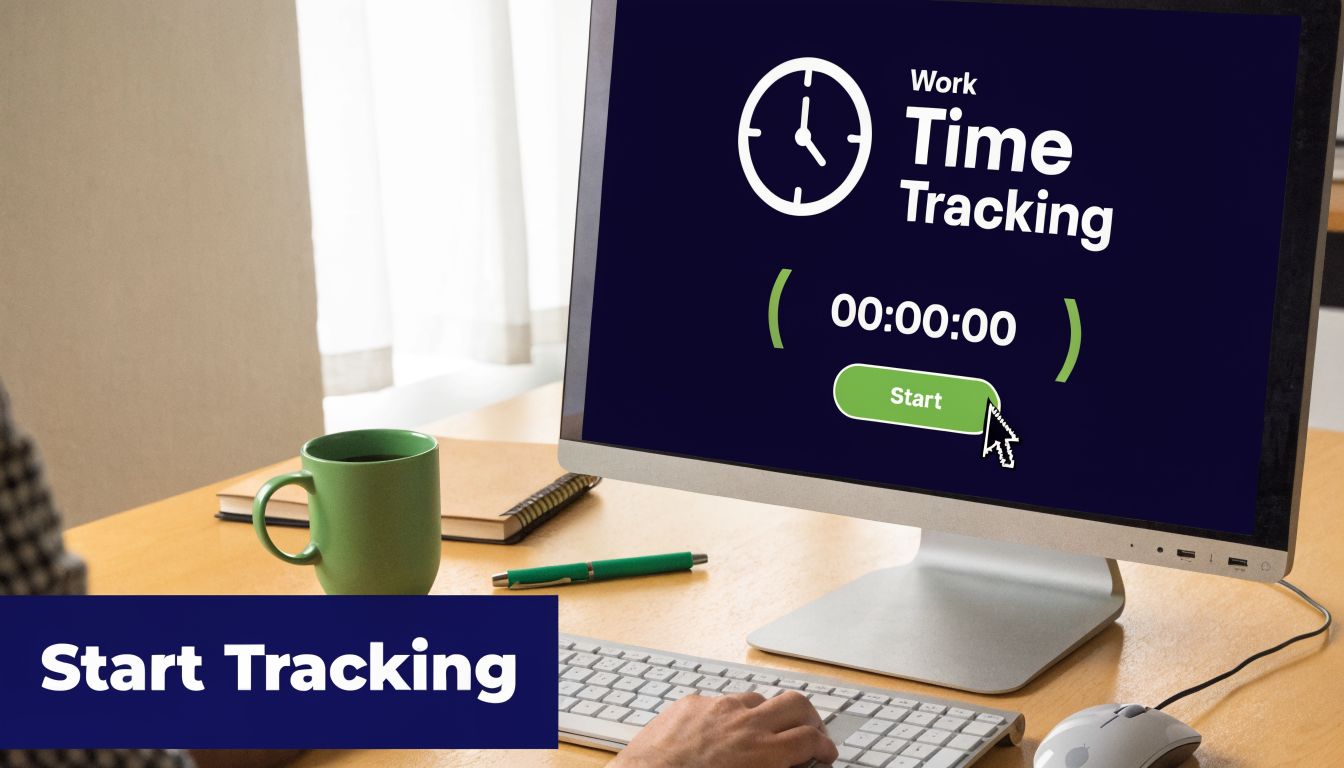
Once the tracker is running, it logs work in 10-minute blocks. During those segments, the app measures activity signals such as keyboard and mouse use and captures screenshots at random intervals. That's normal. You shouldn't work around it. You should work cleanly enough that the screenshots support the billing record.
A good first session usually looks like this:
- You work on one contract only
- Your open windows are relevant to that task
- Your memo matches what's happening on screen
- You stop tracking when you pause, switch projects, or step away
If a screenshot landed right now, would it help explain the billable task? That's the standard to use.
Review your Work Diary right away
After the first block, stop and check the Work Diary, where new users learn how Upwork sees their time.
Look for three things:
- Correct contract: Make sure the time landed where you intended.
- Useful memo: Check whether the note would make sense to a client.
- Relevant screen activity: Confirm the diary reflects actual client work.
This quick review builds confidence fast. It also catches bad habits before they become weekly billing problems.
For team leads, that first review is worth supervising once. A new freelancer who understands how the diary looks on the client side usually tracks much better from then on.
Best Practices for Freelancers and Agencies
Using the tracker well isn't about squeezing more hours onto the invoice. It's about creating a record that holds up when someone asks questions.
That starts with memos. Upwork guidance around time tracking notes that tracked time qualifies for 99.9% payment protection, while manual time is much less protected, and agencies report up to a 25% reduction in disputes when people use stronger memos, according to Upwork's time tracker guidance.
Habits that protect your hours
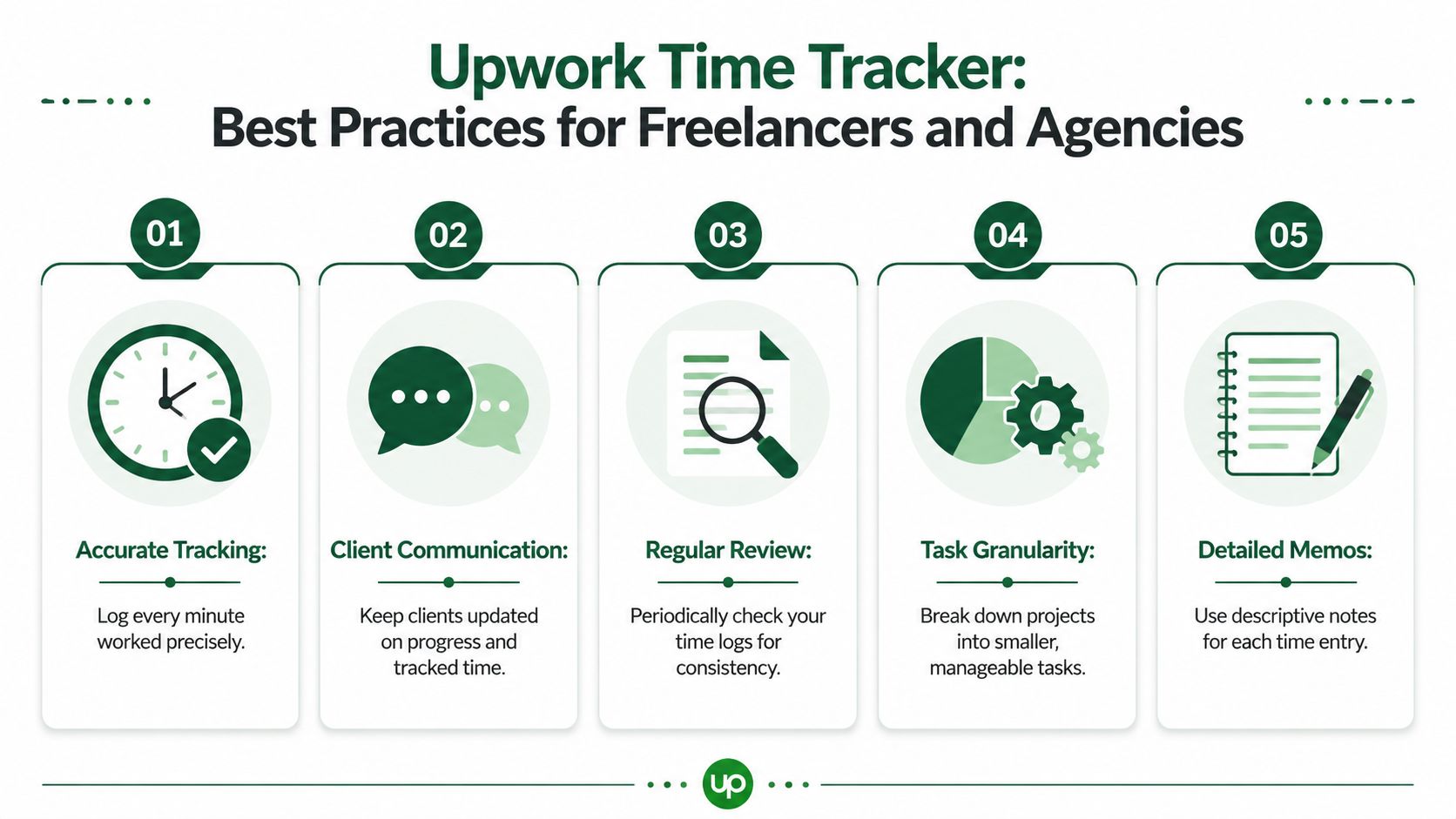
For solo freelancers, the strongest habits are boring on purpose. They create less drama later.
- Write specific memos: “Technical SEO crawl cleanup” is better than “SEO work.”
- Track in focused blocks: Don't mix client work, admin work, and personal browsing in one session.
- Pause aggressively: If you're on a break, stop the timer.
- Review the diary weekly: Catch vague notes or irrelevant screenshots before they become a client concern.
Manual time has a place, but it's a fallback, not a main system. Use it only when it's allowed, only for genuine work, and only with clear notes. If you run an agency, teach that rule once and enforce it every week.
Agency rules that actually work
Agencies need consistency more than cleverness. The best team workflows are the ones every freelancer can follow without interpretation.
A practical agency standard often includes:
- One user, one app login: Each freelancer tracks under their own account.
- One task per memo: Don't stack five activities into one vague label.
- Daily diary checks: Team leads spot bad tracking patterns early.
- Contract confirmation before work starts: No one should guess which contract to bill.
Strong memos do double duty. They help the client understand the invoice, and they help your agency understand where time actually went.
There's also a rate-setting angle here. If your team bills hourly but can't explain what happened inside those hours, the problem isn't just tracking. It's positioning. In this context, a smarter approach to setting your Upwork hourly rate becomes relevant, because the tracker and the rate have to support the same story.
Troubleshooting Common Time Tracker Issues
When the app fails, the fix is usually less dramatic than people expect. Most problems come from permissions, blocked sync, bad installs, or unsupported environments.
Support limitations matter here. Chromebook use remains unsupported in practice, and Linux users regularly hit dependency or execution problems. That affects an estimated ~15% of freelancers using non-standard operating systems, based on Upwork download support guidance and related user challenges.
If the app won't start or crashes
Start with the obvious fix first. Reinstalling clears a lot of broken installs, especially after partial updates or interrupted setup.
Then check these likely causes:
- Windows permission issues: Try launching with administrator privileges if tracking fails on start.
- macOS privacy settings: Verify screen recording permissions are enabled for the app.
- Security software conflicts: Antivirus or endpoint protection may block launch behavior.
- Broken package install on Linux: Reinstall using the correct package for your distro.
If the app crashes only when you click Start, that often points to permissions or system-level blocking rather than a bad password or account issue.
If screenshots or syncing fail
Screenshot failure usually means permission trouble. Sync failure usually means the app can't communicate reliably with Upwork's servers.
Try this sequence:
- Confirm your connection is stable.
- Disable anything that interferes with app traffic, if your environment allows it.
- Reopen the app and sign in again.
- Review the local logs if the problem keeps repeating.
On Windows, app logs are commonly stored in the Upwork desktop log folder under your user profile. On Mac and Linux, the path differs, but the principle is the same. Logs tell you whether the app is failing on launch, permission, or sync.
Linux and Chromebook reality
Linux can work, but it isn't forgiving. Dependency mismatches, package conflicts, and screenshot behavior are the usual trouble spots. Test the entire flow before client work starts. If screenshots don't function correctly, don't assume you're safely covered.
Chromebooks are the blunt case. People do try Linux-based workarounds, but if the tracker can't perform as required, it's not a dependable setup for protected hourly billing.
If you need guaranteed reliability for paid client time, use a fully supported Windows or macOS machine whenever possible.
If your team is winning work on Upwork and you want the sales side to run as smoothly as delivery, Earlybird AI helps agencies and freelancers automate proposal sending, client replies, and multi-account workflows without turning your process into chaos. It's built for sellers who want more qualified conversations while keeping their Upwork operation organized.