
← Back To Blog
A Freelancer’s Guide to the Upwork Desktop App
If you're a freelancer or run an agency on Upwork, the Upwork Desktop App is more than just a convenience—it's your mission control. It's where you'll track your time, chat with clients, and manage your hourly projects with the focus they deserve. Think of it less as a simple timer and more as the central nervous system for your client work, especially for securing payment protection.
Your Freelance Command Center
Sure, the mobile app is great for firing off a quick message while you're grabbing coffee. But when it's time to do the actual work, your desk is where it happens. This isn't just a feeling; the numbers back it up. A staggering 76.34% of all visits to Upwork happen on a desktop computer.
What's more, those desktop users are sticking around. The average session lasts about 15 minutes and 3 seconds, which tells you they're deep in focused, billable work—not just scrolling through job posts. You can dig into more of this user data over on Semrush.
This desktop-first approach is exactly why the app is so crucial. For anyone serious about landing high-value projects and managing them professionally, it’s an absolute must-have.
Why You Can't Afford to Ignore the Desktop App
At its heart, the app nails two things perfectly: time tracking and communication. For any hourly contract, the time tracker is your ticket to Upwork's Payment Protection. It gives both you and your client total transparency by logging your activity—think keystrokes, mouse clicks, and the occasional screenshot—to build an undeniable record of your work.
But it’s not just about logging hours. The app carves out a dedicated workspace, pulling you away from the endless sea of distracting browser tabs. It helps you get into the zone and stay there.
Here's what it brings to the table:
- Rock-Solid Time Tracking: It automatically logs your hours and activity memos on hourly jobs, which is the foundation of getting paid without issue.
- Built-in Messaging: You can chat with clients instantly without having to keep another browser tab open, keeping your communication lines clean and efficient.
- A Focused Workspace: By separating your Upwork projects from everything else on the web, it helps you concentrate and be more productive.
The desktop app is what elevates your freelance gig into a professional business. It’s the tool that handles the administrative bedrock—from accurate billing to building client trust—so you can focus on doing great work.
The Launchpad for Growth and Automation
For freelancers with big ambitions and growing agencies, this desktop-focused workflow is where things get really interesting. The app is your go-to for tracking work after you’ve landed the contract. But what about finding those contracts in the first place?
This is where automation tools can step in. For example, a service like Earlybird AI plugs directly into your professional workflow, hunting down the best job leads for you. It handles the prospecting so you can spend more time doing the billable work you're tracking in the desktop app. It’s a powerful combination.
Want to learn more about setting yourself up for success? Check out our guide on how to be successful on Upwork.
https://myearlybird.ai/blog-posts/how-to-be-successful-on-upwork
Installing the App on Windows and macOS
Getting the Upwork Desktop App running is pretty simple, but there's a right way to do it. The most important thing? Always grab the installer directly from Upwork’s official website. This isn't just a suggestion—it's the only way to be sure you're getting the latest, secure version without any nasty surprises from sketchy third-party sites.
While the process is slightly different for Windows and macOS, the goal is the same: a quick, safe installation so you can get to work. Let's break down how to do it on each platform.
Setting Up on a Windows PC
If you've ever installed software on a Windows machine, this will feel like old hat. Just head over to the Upwork downloads page and click the link for the Windows version.
Once the download finishes, you'll find an installer file (usually ending in .exe) in your "Downloads" folder. Double-click it to kick things off.
You'll likely see a security pop-up from Windows User Account Control (UAC) asking if you want to let the app make changes. This is a normal security check. Go ahead and click "Yes." The installer will take it from there, putting the app where it needs to go and creating a shortcut for you. When it's done, the app will open, and you can log in with your Upwork account.
Getting Started on a Mac
For Mac users, the process is just as easy and follows the standard drag-and-drop installation you’re used to.
First, download the macOS version from the official Upwork site. Your browser will save a .dmg file, which is basically a virtual disk holding the app.
Find that .dmg file in your Downloads and double-click it. A new window will pop up showing the Upwork app icon and a shortcut to your Applications folder. All you have to do is drag the Upwork icon and drop it right onto the Applications folder icon. That's it—it's installed.
The first time you open the app, your Mac's built-in security (Gatekeeper) will probably ask if you're sure you want to open something you downloaded from the internet. Just click "Open" to continue.
There's one more crucial step for Mac users, especially if you work hourly contracts. To let the time tracker take its random screenshots, you have to give it permission.
- Open System Settings > Privacy & Security > Screen Recording.
- Scroll through the list until you find Upwork.
- Just flip the toggle next to it to grant access.
You might be prompted to restart the app for the change to stick. Don't skip this part! Without these permissions, the time tracker can't capture screenshots, which could put your Upwork Payment Protection at risk. Once that's done, you're all set.
Getting the Most Out of the App’s Core Features
Once you've got the Upwork Desktop App installed, it’s more than just an icon on your screen—it's your command center for projects and client communication. To really make it work for you, you need to go beyond the basic setup and master its two most important features: the Time Tracker and the built-in messaging system. Think of them less as tools and more as your secret weapons for boosting productivity and earning client trust.
The Upwork Time Tracker is the heart of the app. It's not just a fancy stopwatch; it’s the engine behind Upwork’s Payment Protection for all your hourly contracts. When you turn it on, the app logs your work in 10-minute billing cycles, notes your keyboard and mouse activity, and snaps random screenshots. All of this creates a transparent, minute-by-minute record of your work that your client can see in your Work Diary.
Getting to this point is straightforward. The installation process is designed to get you up and running in just a few clicks.
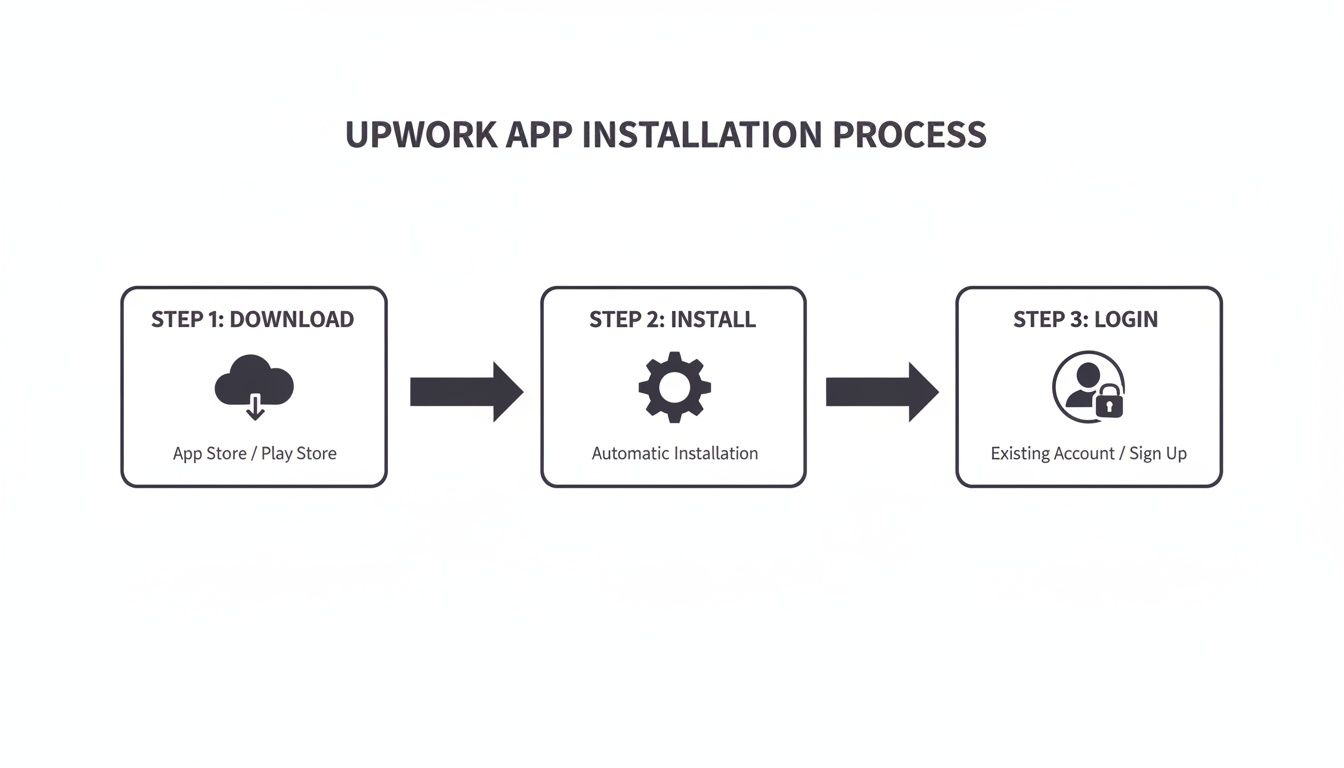
As you can see, it's a quick trip from download to login, so you can start tracking those billable hours right away.
Making the Time Tracker Work for You
Simply clicking the "on" button isn't enough. The real magic of the time tracker is in how you use it to tell a story about the value you're delivering.
It all comes down to the memo. A lazy memo like "working on project" tells your client absolutely nothing. Be specific. Instead, try something like "Drafting homepage hero section copy" or "Debugging user authentication flow." This level of detail shows the client exactly what their money is paying for during that time block.
This is even more critical if you're running an agency. When a client scans the Work Diary for an entire team, clear memos from each freelancer create a powerful, unified progress report. As an agency manager, you can see at a glance who tackled what, which makes compiling client updates a breeze and keeps everyone on the same page.
Think of your Work Diary as a living, breathing progress report. Specific memos and relevant screenshots don't just protect your payments; they actively build client confidence by making your hard work visible and easy to understand.
Managing Notifications Without Losing Your Mind
The app's built-in messaging is fantastic for quick chats without having to switch back to your browser. But the constant ping of notifications can torpedo your concentration. The trick is to bend the settings to your will.
Dive into the notification settings and customize them to fit your workflow. You can set it to only alert you for new messages while silencing all the other chatter. This way, you stay responsive to clients without getting yanked out of deep work for every little thing. Having all your project-related conversations right there in the app is also incredibly handy when you need to double-check a detail while the clock is running.
With 794,000 active clients on the platform and average user sessions lasting over 15 minutes, knowing your way around the app is non-negotiable. It’s your direct line to this massive audience. If you're curious, you can learn more about Upwork's user statistics and see just how big the marketplace really is.
In the end, it’s all about using the right tool for the right job. The desktop app is your best friend for focused, billable work on hourly projects. For everything else—like submitting proposals, tweaking your profile, or managing fixed-price milestones—the main Upwork website usually offers a better experience. By playing to the strengths of both, you build a rock-solid system for running your entire freelance business.
Protecting Your Account with Smart Security Practices
Let's be honest: your Upwork account isn't just a profile. It's the central hub for your entire freelance business and your income stream. That's why treating its security with the seriousness it deserves is absolutely crucial, especially when you're using the Upwork Desktop App, which is directly plugged into your workspace.

If you do only one thing to secure your account, make it this: enable two-factor authentication (2FA). Think of it as a digital deadbolt on your front door. It adds a powerful layer of security by demanding a second piece of proof—usually a code sent to your phone—any time a login happens from a new device. It’s a simple setup that can stop a would-be intruder in their tracks, even if they somehow managed to steal your password.
What’s the Deal with Data Collection and Payment Protection?
I get it. The idea of an app monitoring your activity can feel a little unnerving. But it's essential to understand why the Upwork app does this, because it’s not about spying on you. It's all about providing the foundation for Upwork's Payment Protection on your hourly contracts.
Here’s a quick breakdown of what the app is actually recording while you're on the clock:
- Keystroke and Mouse Activity: It’s not logging what you type, but rather the level of your interaction. This is logged in 10-minute intervals to confirm you are actively engaged in your work.
- Random Screenshots: The app grabs periodic snapshots of your screen. This isn't for a "gotcha" moment; it's to create visual evidence that the work you're doing is directly related to the contract.
- Work Memos: You have the chance to write a brief description of what you're working on, which gets attached to each block of time.
This collected data builds your Work Diary, which is your objective proof in the event of a payment dispute. Without this trail of evidence, you forfeit your payment protection on hourly gigs. It’s better to think of it as your digital insurance policy.
This whole system is designed to create a transparent, indisputable record for both you and your client. It cuts down on potential conflicts and, most importantly, makes sure you get paid for the time you put in.
For a more comprehensive breakdown, we cover this and more in our detailed guide on Upwork's safety measures.
Security Tips for Solo Freelancers and Agencies
If you run an agency, managing credentials gets a bit more complex. The golden rule? Never, ever share your primary Upwork login details. That’s a massive security risk. Instead, use the official agency features built into Upwork to create separate, permission-controlled accounts for each team member. This keeps your main account secure while still giving your team the access they need.
Finally, a word of caution for everyone: stay vigilant against phishing scams. Be incredibly skeptical of any email or message asking for your login credentials, even if it looks like it came directly from Upwork. The safest habit is to always log in through the official app or by typing the website address directly into your browser.
How Agencies Can Use Automation to Fuel Growth
For a solo freelancer, the Upwork Desktop App is often the central hub of their business—it's where the work gets done and the hours get billed. But when you're running an agency, the app is really just one part of a much bigger picture. It’s fantastic for the execution phase, but it does absolutely nothing to help with the most critical part of scaling: winning a steady stream of new clients.
This is where agencies often hit a wall. Manually sifting through job posts, writing custom proposals, and managing invitations is a massive time sink. It’s all non-billable, and as your team expands, this administrative burden just gets heavier. You end up pulling your best talent away from client projects to do sales work, creating a bottleneck that throttles your growth.
Pairing the App with Smart Automation
To get past this, smart agencies combine the Upwork Desktop App with intelligent automation. While your team is heads-down, logging billable hours, a tool like Earlybird AI can act as your 24/7 sales engine in the background. It takes over the repetitive, time-draining task of finding leads so your team can focus on what they're paid to do.
Think of it as a two-pronged attack:
- AI Finds the Leads: The system constantly scans Upwork for jobs that are a perfect match for your agency's skills, so you never miss a golden opportunity.
- AI Sends the Proposals: It then writes and sends personalized proposals almost instantly, getting your agency in front of clients before the competition even wakes up.
- Your Team Delivers: Meanwhile, your experts are free to do what they do best—deliver amazing work, all tracked perfectly through the Upwork Desktop App.
This completely changes how your agency operates. Instead of your top designer spending half their day hunting for the next gig, they stay fully billable. The project pipeline is always full, and team productivity goes through the roof. If you're curious about the specifics, you can dig into how to automate your Upwork proposals and see how it works.
Why the Desktop Is the Main Stage
The data backs this up. A staggering 76.34% of traffic to Upwork comes from desktop users, most of whom land on the site directly or through search. This tells us one thing loud and clear: the real competition for jobs happens on the desktop. It’s the primary battleground where you’re fighting for the attention of nearly 800,000 active clients. For a closer look at the numbers, you can dive into these detailed Upwork statistics.
For an agency, this desktop-first reality is a huge opportunity. An automated system that works around the clock on this platform gives you a massive edge, grabbing the best leads before your competitors have even had their morning coffee.
At the end of the day, automation isn’t about replacing your team; it’s about making them more powerful. Tools like Earlybird AI give you a command center to manage multiple bidders, track what’s working, and fine-tune your entire sales process. By bringing automation into the mix, you let the Upwork Desktop App do its job—track profitable work—while a dedicated system handles the never-ending challenge of keeping your agency growing.
Got Questions About the Upwork Desktop App?
Even freelancers who have been on the platform for years sometimes have questions about the little details of the Upwork Desktop App. Knowing the ins and outs is crucial for using it right and protecting your income. Let's dig into some of the most common questions I hear from other freelancers.
How Does the Upwork Time Tracker Really Work?
Think of the Time Tracker as your key to unlocking Upwork's Hourly Payment Protection. It’s far more than a simple stopwatch; it’s a system built to create a clear, unbiased record of the work you've done.
When you flip it on for an hourly contract, it starts logging your time in 10-minute billing segments. During each of those segments, it’s doing a few things in the background:
- It measures your activity. The app is quietly counting your keystrokes, mouse clicks, and scroll movements. This data generates an activity score for each 10-minute block, showing that you were actively working.
- It takes random screenshots. To give clients a visual confirmation of your work, the app grabs a snapshot of your screen at a random moment within that 10-minute window. This helps prove that your on-screen activity is related to their project.
- It logs your memos. That little description you write when you start the timer? It gets attached to that block of time, adding essential context to what you were doing.
All of this information gets compiled into your Work Diary. It’s this transparent log that backs up every invoice and becomes your proof if a payment dispute ever comes up.
Can I Use the App on More Than One Computer?
Absolutely. It’s pretty common for freelancers to have a main desktop rig at home and a laptop for travel or working from a coffee shop. You just need to log in with the same Upwork account on each machine.
The one major rule to remember is that you can only track time on one device for one contract at a time. You can’t, for instance, have the timer for the same project running on both your desktop and your laptop simultaneously. This is in place to keep billing records accurate and prevent any accidental double-billing. The app syncs everything to the cloud, so your Work Diary stays consistent no matter which computer you used.
My Advice: Get into the habit of stopping the tracker on one machine before you even think about switching to another. It’s a simple step that prevents any weird overlaps or confusing entries in your Work Diary.
What Should I Do If the App Stops Working?
Technology can be fussy. If the Upwork app suddenly freezes, crashes, or refuses to log you in, take a breath. Most of the time, you can fix it yourself with a few quick steps before you have to reach out to support.
Start with the basics—you'd be surprised how often these work:
- Check your internet. A flaky or dropped connection is the number one cause of app issues. It needs to be online to sync properly.
- Restart the app. It's a classic for a reason. Make sure you completely close the application, don't just minimize it, and then open it again.
- Log out and log back in. This can often reset your session and clear up minor authentication glitches.
If you’ve tried all that and it's still acting up, your next move is to clear the app's cache. This forces it to pull fresh data from Upwork's servers and can resolve problems caused by corrupted files stored on your computer. If the problem still isn't fixed, it’s officially time to contact Upwork Support with as much detail as you can provide.
Ready to stop spending your billable hours searching for jobs? Earlybird AI acts as your 24/7 sales team, automatically finding perfect-fit projects and sending personalized proposals in minutes. Free up your time to focus on the work you do best. Discover how at https://myearlybird.ai.