
← Back To Blog
Upwork Screen Capture: Best Practices & Privacy 2026

You've just landed a new hourly contract on Upwork. The client seems solid, the scope is clear, and then the nervous part kicks in. The desktop app wants permission to track activity and take screenshots. Now you're wondering what most new freelancers and agency owners wonder: how intrusive is this, do clients view the screenshots, and can this thing help you or hurt you when money is on the line?
The short answer is that Upwork screen capture isn't just a monitoring feature. It's part of the platform's proof system for hourly work. If you understand how it works and build a clean routine around it, it becomes manageable. If you ignore it, treat it casually, or let your team improvise, it can create avoidable risk.
That's the part many guides miss. The main issue isn't whether screenshots exist. It's how to use the Work Diary in a way that protects payment, limits privacy exposure, and keeps clients comfortable without turning your workday into a performance.
What Is Upwork Screen Capture and Why It Matters
Upwork screen capture is the screenshot component inside Work Diary, the record created when a freelancer tracks time on an hourly contract through the desktop app. It exists for one reason: to give the client evidence that the billed time matched the work they hired you to do.
In practice, that means the system records visual proof of what was on screen while you worked, along with activity signals tied to that same block of time. The point isn't elegance. The point is verification.
For a freelancer, that can feel invasive at first. For a client, especially a new client hiring remotely, it often feels reassuring. That tension is the whole story. Upwork built the feature to reduce “Did this work occur?” arguments before they turn into payment problems.
Why agencies should care early
If you run a small agency, this matters even more than it does for a solo freelancer. One sloppy tracker habit from one team member can create confusion for the client and extra cleanup work for you. Worse, it can make your whole agency look disorganized.
A good agency owner treats the Work Diary like operational hygiene:
- Set one standard: Everyone should know when to track, when to pause, and what should never be visible on screen.
- Train for relevance: The screen should show project-related work, not a cluttered desktop, personal messages, or unrelated tabs.
- Review before problems happen: Don't wait for a client question to discover your contractor tracked research on one monitor while a personal inbox sat open on the other.
Practical rule: If a screenshot would be awkward to explain to a serious client, it shouldn't be on screen while the tracker is running.
What nervous freelancers usually get wrong
Most anxiety comes from imagining constant surveillance. That isn't the right mental model. The better model is this: Upwork is building a time-stamped record that can be used later if someone questions hours worked.
That's why the feature matters. It's less about watching you in real time and more about creating a defensible trail after the fact. Once you understand that, your decisions get simpler. You stop asking, “How do I avoid screenshots?” and start asking, “How do I make every tracked segment easy to defend?”
How the Upwork Screen Capture System Works
The system is best understood as a security camera that doesn't record video. It takes one random photo during each billing window, then pairs that image with activity data for the same period.
According to this explanation of Upwork screen capture timing, Upwork's Time Tracker captures exactly one screen capture per 10-minute billing segment, resulting in a maximum of six screen captures per hour when actively tracking time on hourly contracts, with the exact timing within each segment randomized to prevent predictability.

What happens inside each work block
Once you start the tracker in the desktop app, the system creates a 10-minute segment. During that segment, it does two main things:
- It records one screenshot at a random moment.
- It monitors mouse movement and keystrokes to calculate activity for that period.
That random timing matters. You can't just “look busy” at a known capture point. The whole segment needs to reflect real work. If you're switching between active writing, editing, browsing source material, and making changes in a client file, that usually looks normal. If you're running the tracker while stepping away, it doesn't.
Why permissions matter
This all runs through the Upwork Desktop App. The app needs the right system permissions to capture screenshots and record activity correctly. If those permissions aren't granted, the tracker can't do its job cleanly.
For teams that document workflows often, it helps to know a simple way to take screenshots outside Upwork too. That's useful when you need to show a client how something works without relying on Work Diary screenshots for communication.
If you need a broader overview of the tracker environment itself, the Upwork desktop app guide is worth reviewing before you onboard new team members.
What the client actually sees
The client can review the Work Diary as a record of what happened during tracked time. That record is less polished than a project update and more like a logbook. It shows time segments, screenshots, and activity signals together.
That's why context matters. If your screen shows a project brief, Figma file, Google Doc, development environment, analytics dashboard, or client-approved research tab, the screenshot helps you. If it shows Slack chatter about another client, personal email, or a social feed you forgot to close, the screenshot raises questions you didn't need.
The Work Diary works best when your screen already tells a clean story without extra explanation.
The Link Between Screen Capture and Payment Protection
A lot of freelancers treat the tracker as an annoyance they tolerate. That's the wrong frame. For hourly work, it's much closer to an insurance policy.
According to Upwork's guidance on using the desktop app for payment protection, to qualify for Upwork Hourly Protection, freelancers must log hours using the Upwork Desktop App and maintain contract-related activity in their Work Diary, which includes the screen capture screenshots. Without using the tracker and generating these screenshots, freelancers lose payment protection in 99% of client disputes regarding work completion.

Why this matters in real agency operations
If you're managing multiple freelancers, you need one principle drilled into the team: hourly protection depends on disciplined tracking. Not good intentions. Not “the client knows we worked.” Not a nice message in chat. Tracked, contract-related time inside the app.
That changes how you should run hourly projects:
- Use tracked time for actual hourly work: Don't rely on memory later.
- Keep on-screen work connected to the contract: The record has to match the invoice.
- Avoid messy edge cases: If a task is hard to show visually, document it well while staying inside the client's scope.
This is also why experienced freelancers often prefer hourly contracts with clear tracker habits over vague trust-based arrangements. When a dispute happens, the platform cares about what can be verified.
What protection does and doesn't do
The tracker doesn't magically make bad work good. It won't rescue poor communication, missed deadlines, or work outside scope. But it does create a hard record that you were present, working, and billing against a specific contract in a way the platform can evaluate.
That's a major difference.
If you want a broader view of platform risk from the buyer and seller side, the Upwork safety overview gives useful context for how trust gets enforced on the platform.
If the client relationship is healthy, the Work Diary often stays in the background. If the relationship turns tense, that same record becomes your first line of defense.
A nervous new agency owner usually asks whether the screenshots are worth the privacy cost. My answer is simple. On hourly work, if you want Upwork's protection structure behind you, the screenshots are part of the price of admission. You can dislike that and still use it professionally.
How to Manage Privacy and Client Perception
Emotional friction arises from these concerns. Freelancers don't usually worry about the timer itself. They worry about what might end up visible, what a client might infer from a half-second screen capture, and whether a normal work habit could look suspicious out of context.
The uncomfortable truth is that those concerns are valid. The practical truth is that most of them can be managed.
According to Upwork's Work Diary review information, a common question is whether clients review screenshots and how often those screenshots affect disputes, but existing content provides no data on client review frequency or dispute outcomes. So if you're looking for a hard answer on how often clients inspect every image, that data isn't available.

The real privacy risks
The risk categories are usually straightforward:
- Personal content exposure: Email, messaging apps, calendar alerts, personal documents, banking tabs.
- Cross-client visibility: One client's material visible while tracking time for another.
- Misleading context: A screenshot catches a research tab, loading screen, or notes app that looks idle even though the work is legitimate.
- Professional optics: A chaotic desktop can make focused work look sloppy.
None of these requires paranoia. They require setup.
A workable privacy routine
Before you start the tracker, do a short reset. This takes less effort than cleaning up after a client asks awkward questions.
- Use a dedicated browser profile: Keep client work separate from personal browsing.
- Close unrelated apps: Personal chat tools and inboxes should be shut, not minimized and forgotten.
- Use separate desktops or workspaces: On both Mac and Windows, virtual desktops make this much easier.
- Turn off noisy notifications: A harmless popup can still look unprofessional in a screenshot.
- Check secondary monitors: People forget these. Clients won't.
- Keep the active window relevant: Research is fine. Random drift isn't.
Client perception matters as much as privacy
A lot of screenshot anxiety is really fear of judgment. “What if they think I'm not working hard enough?” The solution isn't to act robotic. It's to create context and consistency.
If you do substantial research, planning, reading, debugging, or QA, tell the client how you work before they wonder. Good clients don't expect every screenshot to show dramatic visible progress. They expect the record to make sense when paired with outcomes.
That's where communication helps. A short onboarding message can prevent a lot of suspicion. The client communication best practices guide is useful if your team needs a repeatable way to set expectations early.
A client usually doesn't need perfect screenshots. They need screenshots that match the work they hired you to do.
Is the privacy trade-off worth it
For most hourly freelancers, yes, if they're disciplined. Not because the feature feels good. It doesn't. It's worth it because the combination of a clean workspace, clear task focus, and predictable communication keeps the downside manageable while preserving the payment-protection upside.
If you know you hate being tracked, fixed-price contracts may fit you better. But if you're going to work hourly on Upwork, fighting the existence of screen capture is wasted energy. Building a routine around it is the adult move.
Best Practices for Using the Work Diary
The freelancers who have the least trouble with Work Diary usually aren't the smartest or the fastest. They're the most consistent. They treat tracking like part of project management, not a separate admin burden.
That mindset matters because the Work Diary isn't only there for disputes. Used well, it becomes a quiet trust-builder. Clients see organized hours, relevant screenshots, and work that matches the brief. That lowers friction.
According to Laura Pennington's explanation of Upwork hourly jobs, screen capture screenshots combined with keystroke activity data make it nearly impossible for clients to allege fraudulent hour logging, as the screenshots provide visual proof of activity and keystrokes confirm the user was actively working at their computer during the logged period.
Habits that make your diary defensible
Start with the basics. They sound obvious, but many avoidable mistakes originate here.
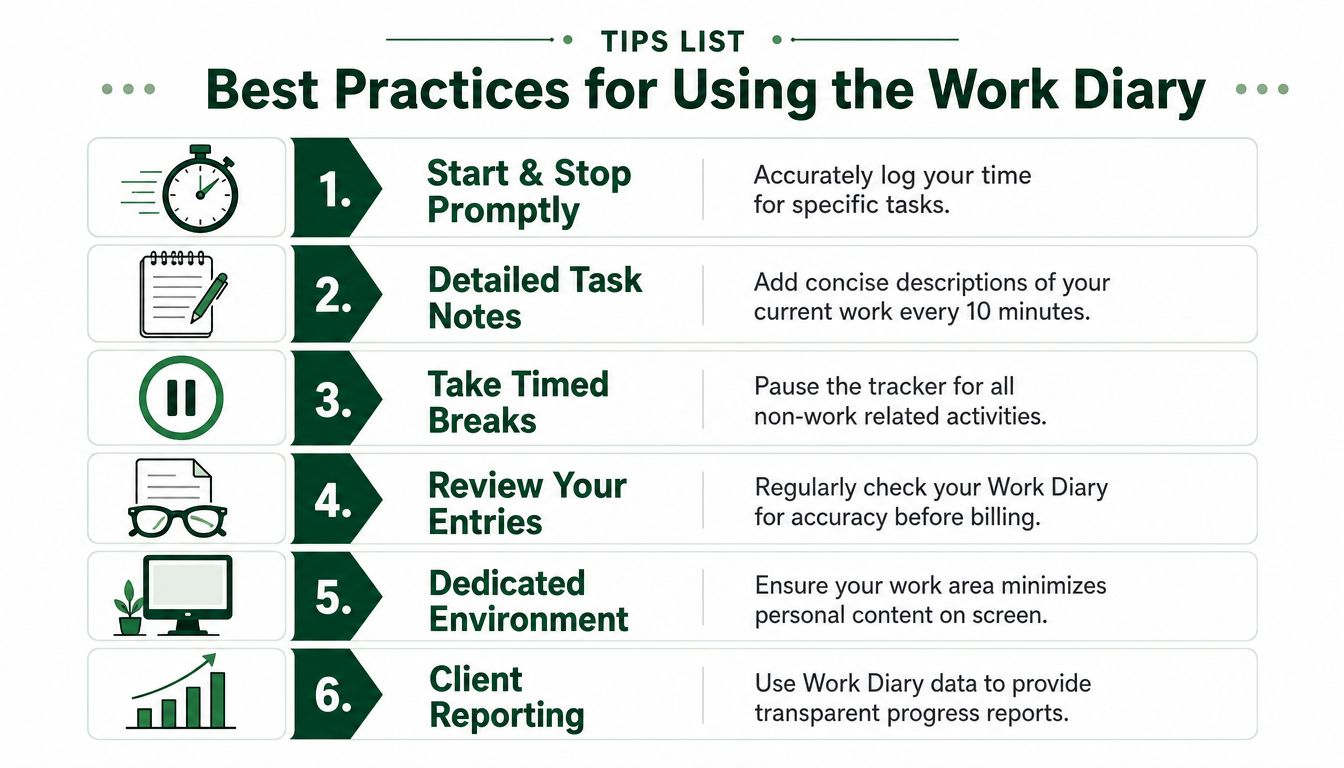
- Start and stop on task boundaries: Don't let the tracker run while you're switching to lunch, taking a call, or answering unrelated messages.
- Use clear memos: Short task notes help your screenshots make sense later.
- Track the right contract: Agencies with multiple active hourly jobs should make this a formal check, not an assumption.
Then tighten your workflow further:
- Keep the key project window visible when possible.
- If you're doing thinking-heavy work, use notes, outlines, comments, or tickets so the screen still reflects active progress.
- Review your diary before the billing cycle closes, especially if you manage subcontractors.
How to handle low-activity work
Low-activity doesn't always mean low-value. Reading a technical spec, reviewing a long brief, planning a content structure, or analyzing a bug can produce fewer clicks than design production or coding. That's normal.
What doesn't work is leaving no trail. If the task is naturally quiet, create visible context:
- Open the brief, ticket, or research material you're using.
- Add concise notes.
- Work inside the client's files or your work document instead of thinking off-screen.
Agency rule: If a task is hard to explain from a screenshot alone, pair it with stronger written context before anyone asks.
Team policies that save agency owners time
If you run an agency, don't leave tracker usage to personal preference. Set lightweight operating rules.
A good policy usually includes:
- Which contract to select before starting.
- What types of tabs or apps must be closed.
- When manual time is allowed, if ever.
- Who reviews Work Diary quality on the team.
- How to explain tracker usage to clients during kickoff.
The last point matters. Some clients love the transparency. Others barely look at it. Either way, explaining your process early makes your agency look controlled and professional.
What does not work
A few habits create trouble fast:
- Tracking while multitasking across unrelated clients.
- Assuming screenshots won't matter because the client seems relaxed.
- Letting a team member “figure it out” without training.
- Using the diary as a substitute for actual progress updates.
The Work Diary supports trust. It doesn't replace communication, delivery discipline, or scope control.
Troubleshooting Common Screen Capture Issues
Most Upwork tracker problems aren't mysterious. They're usually permission issues, workflow mistakes, or confusion about what the system can and can't do.
According to this discussion of Upwork Desktop Tracker screenshot behavior, the screenshot capture feature cannot be turned off by users, and on Mac OS, users must explicitly grant screenshot permissions in system settings or the app can return “Failed to take screenshot” errors.
Problem with failed to take screenshot
If you're on Mac and see a screenshot failure message, check system permissions first. The app needs screenshot access at the operating-system level. If that permission wasn't granted during setup, the tracker can run into capture errors.
The practical fix is simple:
- Open your Mac's system settings.
- Find the screen recording or screenshot-related privacy permissions.
- Confirm the Upwork Desktop App is allowed.
- Restart the app if needed.
If you manage a team, make this part of onboarding. Don't wait until someone has already logged questionable time.
Problem with wanting screenshots off
You can't disable the feature inside the tracker and still expect the tracker to function as intended for hourly verification. If someone on your team objects strongly to screenshots, that isn't a settings issue. It's a contract-model issue.
In those cases, your options are operational, not technical:
- Move that work to fixed-price if the client agrees.
- Assign hourly contracts only to people comfortable with tracker rules.
- Separate personal and work environments more aggressively.
Problem with inactivity or weak diary quality
If a segment shows low activity, first ask whether the work itself was visible and contract-related. Quiet work can still be legitimate, but invisible work is harder to defend. Keep notes open, work from the actual project files, and pause the tracker when you step away.
If the diary looks messy, review the day while it's still fresh. Agencies should spot-check team diaries regularly rather than waiting for billing questions.
Problem with accidental personal exposure
This is usually preventable with better setup. Close personal tabs, mute notifications, and use separate browser profiles or desktops. If your current setup makes mistakes likely, change the setup. Don't rely on willpower every hour of the day.
The cleanest approach is to build a work environment where any random screenshot already looks client-safe.
If your agency wants more qualified Upwork opportunities without turning proposal work into a full-time job, Earlybird AI is built for that. It helps teams find relevant jobs fast, draft personalized proposals, manage replies, and keep outreach moving without adding manual SDR overhead. For agencies juggling delivery, hiring, and pipeline at once, that kind of automation can take a lot of pressure off the front end of sales.